Oracle Enterprise Manager Administrator's Guide Go to Product Documentation Library
Library
Go to books for this product
Product
Go to Contents for this book
Contents
Go to Index
Index


Go to previous file in sequence Go to next file in sequence

Managing Backups and Archiving


This chapter describes how to use Backup Manager to back up tablespaces of a database and manage redo logfile archiving. This chapter assumes that you have read Chapter 7, Overview of the Database Tools, and that you are familiar with the interface elements of the database tools.

The topics included in this chapter are:

For more information on the tasks the Backup Manager performs, see the Oracle7 Server Administrator's Guide. For information about standard elements of your operating system, see your operating system-specific documentation.

Starting the Backup Manager

To start the Backup Manager, select a database object from the navigator. Then click on the Backup Manager icon in the Applications Launch Palette, or choose Oracle Backup Manager from the Tools menu.

Attention:
Many Backup Manager tasks require SYSDBA privileges.

Note:
You can change the database connection with the Change Database Connection option in the File menu of the Console.

After the Backup Manager has successfully connected to a database, the Backup Manager main window displays. Figure 12-1: Backup Manager Main Window shows this window.
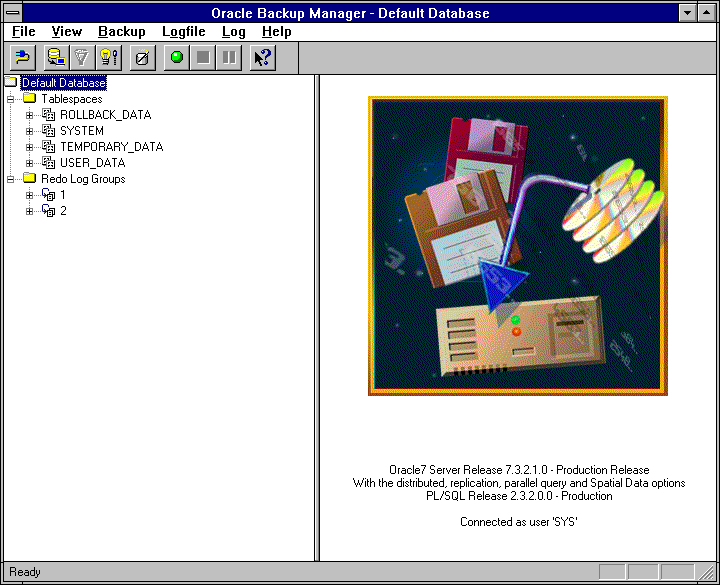
Figure 12-1: Backup Manager Main Window
As Figure 12-1: Backup Manager Main Window shows, the Tablespaces and Redo Log Groups folders display in a tree list on the left side of the Backup Manager window. These folders are contained in the database folder, which displays the name of the database to which the application is connected.

The display on the right side of the window is determined by the object selected on the left side of the screen. The right side may contain a multi-column scrolling list or a property sheet.

For general information, see:

Tablespace Folders and Multi-column Lists

This section covers the following topics:

Tablespace Folder

The Tablespaces object type folder contains each tablespace in the database arranged alphabetically in a tree list. A particular tablespace can be expanded to show each of its datafiles.

When you select:

For information about managing tablespaces, see the Oracle7 Server Concepts, the Oracle7 Server Administrator's Guide, and the Oracle7 Server SQL Reference.

Multi-column List for the Tablespaces Folder

When you select the Tablespaces object type folder in the tree list, a multi-column list displays on the right. This list includes a row for each tablespace in the database. The columns of the list are:

Tablespace
Name of the tablespace.

Size (M)
Total size in megabytes of the datafiles that comprise the tablespace.

Backup Status
Backup status of the tablespace: Active (an online backup of this tablespace is currently in progress), Not Active (no online backup of this tablespace is currently in progress); or Offline.

Online Backup Started
Date and time the online backup of this tablespace started. If this column is empty, no online backup of this tablespace is currently in progress.

Multi-column List for an Individual Tablespace

When you select an individual Tablespace object type folder in the tree list, a multi-column list displays on the right. This list includes a row for each datafile in the tablespace. The columns of the list are:

Filename
Directory path and filename of this datafile.

File ID
File ID of this datafile.

Status
Status of this datafile: Available, Invalid, or Undefined.

Size (M)
Total size in megabytes of this datafile.

Redo Log Folders, Lists, and Property Sheets

This section covers the following topics:

Redo Log Group Folders

The Redo Log Groups object type folder contains each redo log group of the database. A particular redo log group can be expanded to show its redo log members contained within a Redo Log Members object type folder.

When you select:

For information about managing redo log groups, see the Oracle7 Server Concepts, the Oracle7 Server Administrator's Guide, and the Oracle7 Server SQL Reference.

Multi-column List for the Redo Log Groups Folder

When you select the Redo Log Groups object type folder in the tree list, a multi-column list displays on the right. This list includes a row for each redo log group in the database. The columns of the list are:

Group
Group number of the redo log group.

Sequence
Sequence number of the redo log group.

Size (K)
Space allocated in kilobytes to the redo log group.

Status
Logging status of the redo log group: Current, Active, or Inactive.

Archived?
Indicates whether the redo log group has been archived. YES or NO.

Low SCN
System Change Number for the first change recorded in the redo log group.

Time of Low SCN
Date and time of the low SCN.

Multi-column List for the Redo Log Members Folder

When you select the Redo Log Members object type folder in the tree list, a multi-column list displays on the right. This list includes a row for each redo log member in the redo log group. The columns of the list are:

Member Filename
Filename and directory path for the redo log member.

Group
Group number of the redo log group to which this redo log member belongs.

File Status
Status of this redo log member: In Use, Invalid (the file is inaccessible), Stale (the contents of the file are incomplete), or Deleted (the file is no longer in use).

Group Status
Status of the redo log group to which this redo log member belongs: Current, Active, or Inactive.

Archived?
Indicates whether this redo log member has been archived: YES or NO.

Property Sheet for a Particular Redo Log Group

When you select a particular redo log group in the tree list, a property sheet for this redo log group displays on the right. The items of this property sheet are:

Group #
Displays the redo log group number for this redo log group.

Use Existing File(s)
Click this button to allow Oracle Enterprise Manager to use existing file(s).

New File(s) Size
Click this button in order to specify the size of the new Redo Log Group file(s).

KM Bytes
If you click the New File(s) Size button, enter the new file(s) size in the Bytes box and click K (default) to specify that the new file(s) size is in kilobytes, or M to specify that the new file(s) size is in megabytes.

Current Members
Displays the filenames and directory paths for the redo log members of this redo log group.

Remove
Disabled in this property sheet.

New Member
Enter a new member for this redo log group in the New Member box.

....
Click the Browse button to display the Open dialog box, from which you can select the redo log file you want to enter in the New Member box.

Add
Adds a new redo log member to this redo log group.

The Add button is enabled when you enter a new redo log member in the New Member box.

Property Sheet for a Particular Redo Log Member

When you select a particular redo log member in the tree list, a property sheet for this redo log member displays on the right. The items of this property sheet are:

Filename
Enter the new filename of the redo log group member.

Group
Displays the redo log group to which the redo log member belongs.

Backup Manager Menus

Backup Manager includes four standard menus, File, View, Log, and Help. It also includes the Backup and Logfile menus. This chapter describes menus specific to the Backup Manager. For information on the standard menus, see Application Menus on page 7-7.

Backup Menu Member

The Backup menu includes the following items:

Shutdown Database
Shuts down the database. For more information, see Shutting Down the Database on page 12-10.

Startup Database
Starts up the database. For more information, see Starting Up the Database on page 12-11.

Restrict Sessions
Makes the database accessible only to users with the RESTRICTED SESSION system privilege. Users already connected are not affected.

Allow All Sessions
Makes the database accessible to all users with the CREATE SESSION system privilege.

Backup Tablespace Wizard
Allows you to create a job script for backing up the tablespaces of the database. For more information, see Backing Up Tablespaces of the Database on page 12-12.

Begin Online Backup
Prepares the selected tablespace for an online backup.

When you choose Begin Online Backup, two columns of the Tablespaces multi-column list indicate that fact: the Backup Status column changes to "Active,"and the Online Backup Started column shows the data and time the backup was started. For more information on the Tablespaces multi-column list, see Multi-column List for the Tablespaces Folder on page 12-4.

The Begin Online Backup menu item is enabled when an individual tablespace is selected, that tablespace is online, and the backup status of that tablespace is not currently active.

End Online Backup
Notifies the database that the online backup is complete.

When you choose End Online Backup, two columns of the Tablespaces multi-column list indicate that fact: the Backup Status column changes to "Not Active,"and the Online Backup Started column no longer contains any information for that tablespace. For more information on the Tablespaces multi-column list, see Multi-column List for the Tablespaces Folder on page 12-4.

The End Online Backup menu item is enabled when an individual tablespace is selected, that tablespace is offline, and that tablespace is currently being backed up.

Place Tablespace Online
Places the selected tablespace online.

The Place Tablespace Online menu item is enabled when an individual tablespace is selected, and that tablespace is offline.

Take Tablespace Offline
Places the selected tablespace online.

The Place Tablespace Offline menu item is enabled when an individual tablespace is selected, and that tablespace is online.

Backup Control File
Displays the Backup Control File dialog box, from which you can enter the name and directory location of the backup control file for the database.

Instead of entering this information, you can click on the Browse button to display the standard Open dialog box, from which you can select the destination for the control file backup.

Logfile Menu

The Logfile menu includes the following menu items:

Enable Automatic Archiving
Enables automatic archiving of online redo log files.

Disable Automatic Archiving
Disables automatic archiving of online redo log files.

Show Archive Log Info
Displays archive log information. For more information, see Manually Archiving Redo Log Files on page 12-15.

Manually Archive
Allows you to manually (explicitly) archive specified redo log files for the current database instance. For more information, see Manually Archiving Redo Log Files on page 12-15.

Switch Logfile
Allows you to switch redo log groups. Choosing Switch Logfile automatically enables the next redo log group to become the current redo log group.

Force Checkpoint
Forces a checkpoint. During a checkpoint, all modified database buffers are written to the appropriate datafiles.

Add Log Group
Creates a new redo log group for the database. For more information, see Adding a New Redo Log Group on page 12-16.

Drop Log Group
Allows you to remove a redo log group from the database.

The Drop Log Group menu item is enabled when an individual redo log group folder is selected.

Add Log Member
Allows you to create a new member for an existing redo log group. For more information, see Adding a New Member to an Existing Redo Log Group on page 12-17.

Drop Log Member
Allows you to remove a redo log file from a redo log group.

The Drop Log Member menu item is enabled when an individual redo log file is selected.

Selected Backup Manager Tasks

This section covers the following topics:

Shutting Down the Database

To shut down the database, choose Shutdown Database from the Backup menu. The Shutdown property sheet appears.

Attention:
Before shutting down a release 7.1 or later database, you must connect as SYSDBA or SYSOPER. Before shutting down a release 7.0 database, you must connect as INTERNAL.

The items of the Shutdown property sheet are described below:

Shutdown Options
Normal: Shuts down the database in normal mode.

Immediate: Shuts down the database in immediate mode. (This is the default.)

Abort: Shuts down the database in the abort mode.

Shut Down
Click this button to shut down the database in the mode you have selected.

Attention:
Other applications create separate connections when you start them. When performing a shutdown in normal mode, remember to close these windows, or the shutdown will not complete.

Starting Up the Database

To start up the database, choose Startup Database from the Backup menu. The Startup property sheet appears.

Attention:
Before starting up a release 7.1 or later database, you must connect as SYSDBA or SYSOPER. Before starting up a release 7.0 database, you must connect as INTERNAL.

The items of the Startup property sheet are described below:

Startup Options
Force: Forces an instance to start regardless of the operating circumstances.

Restrict: Starts an instance in restricted mode. Connections are limited to those users who have been granted the RESTRICTED SESSION system privilege.

Parallel: Allows multiple instances to access a single database concurrently.

No Mount: Starts up the instance and mounts the database. The database is accessible only to database administrators.

Mount: Mounts a database upon instance startup. The database is accessible only to database administrators.

Mount and Open: Starts up the instance, and mounts and opens the database.

Don't Use Stored Parameters (checkbox)
This checkbox only appears when initialization parameters are stored in the repository. If visible and not checked, a new INIT.ORA file will be created.

Parameter File
Name of the parameter file used to start the instance.

If you do not specify a parameter file, Oracle Enterprise Manager looks for the parameter file in the default location on your local machine. For information about the default location for the parameter file, see your operating system-specific Oracle documentation.

Browse: Displays the standard Open dialog box, allowing you to locate the parameter file.

Startup
Click this button to start up the database.

Backing Up Tablespaces of the Database

To create a backup job script in order to back up one or more tablespaces of the database, choose Backup Tablespace Wizard from the Backup menu. The Backup Tablespace Wizard displays.

Attention:
It is best to create a separate backup job script for each database you plan to back up, as it is highly unlikely that the data structures of any two databases would match.

The Backup Tablespace Wizard includes four pages that you complete in order to create a backup job script, which you can then run from the Job subsystem of the Console. These pages are described below:

Tablespace Backup Wizard Page 1

Page 1 of the Tablespace Backup Wizard allows you to specify the status of the database that will be required in order to complete the backup. The buttons are described below:

Up
Click this button if you want to back up the tablespace(s) when the database is still operating (up). (This is the default.)

Tablespaces online (hot): Click this button if you want to back up the tablespace(s) when the database is up and the tablespace(s) are online.

This button is enabled only when the Up button is selected. When the Up button is selected, this button is selected by default.

Tablespaces offline (cold): Click this button if you want to back up the tablespace(s) when the database is up and the tablespace(s) are offline.

This button is enabled only when the Up button is selected.

Down
Click this button if you want to back up the tablespace(s) when the database is down.

Attention:
The backup job script you are creating will not perform the tasks of bringing the database up or down, or bringing the tablespaces online or offline. Instead, the backup job script will require that the conditions you specify are met before the backup is initiated.

Tablespace Backup Wizard Page 2

Page 2 of the Tablespace Backup Wizard allows you to specify the particular tablespaces of the database to be backed up. The items of Page 2 are described below:

Selected Tablespaces
Lists the tablespaces of the database that you want to back up.

Arrow buttons
Use the left arrow button to add tablespaces selected in the Available Tablespaces box to the list of tablespaces in the Selected Tablespaces box. Use the right arrow button to remove tablespaces selected from the Selected Tablespaces box to the list of tablespaces in the Available Tablespaces box.

Double-clicking on a tablespace in either box performs the same operation the arrow keys perform -----it transfers the tablespace from one of these boxes to the other.

Available Tablespaces
Select tablespaces in this box which you want to back up.

Tablespace Backup Wizard Page 3

Page 3 of the Tablespace Backup Wizard allows you to specify the backup method to be used during backup. The items of Page 3 are described below:

Write to Disk
Click this button to specify that the backup script be written to disk. The default file location is $ORACLE_HOME\SYSMAN\SCRIPTS on the local machine. (This backup method is the default.)

Directory: Enter the directory path for the backup file in this box.

The Directory box is enabled only when the Write to Disk button is selected.

Write to Tape
Click this button to specify that the backup be written to tape.

Tape Device: Enter the device ID of the tape drive on the host to be used for backup. The Tape Device box is enabled only when the Write to Tape button is selected.

Archive Using OS Command Line
Click this button if you want to archive the backed up tablespaces using a command at the operating system prompt.

Command: In this box, enter the command to be invoked at the operating system prompt.

The Command box is enabled only when the Archive Using OS Command Line button is selected.

Tablespace Backup Wizard Page 4

Page 4 of the Tablespace Backup Wizard allows you to specify the filename of the file that will contain the backup job script you are creating using the Tablespace Backup Wizard. The items of Page 4 is described below:

Filename
In this box, enter the filename and directory path of the file that will contain the backup script. If you use the Browse button to select a filename, the .bdf extension is automatically appended to the filename. Manually entered filenames appear as they are entered.

....
Click the Browse button in order to use a standard Save As dialog box to select a file that will contain the backup job script. This file will then appear in the Filename box.

Finish
Click this button to create the backup job script. (This script is not a TCL script.)

If creating the backup script was not successful, a message indicates how to correct the problem. If the backup script was created successfully, a message indicates that fact.

Attention:
In order to run the backup job that you have created, use the Job subsystem of the Console. For more information, see Chapter 4, Job Scheduling.

Displaying Archive Log Information

To display information from the archive log, choose Show Archive Log Info from the Logfile menu. The Archive Log Information window displays.

The Archive Log Information window includes the following information:

Database Log Mode
Indicates the currently enabled archive log mode: Archive Mode or No Archive Mode.

Automatic Archival
Indicates the current status of automatic archival: Enabled or Disabled.

Archive Destination
Indicates the current destination device or directory for the archived redo log group.

Oldest Online Log Sequence
Indicates the log sequence number of the oldest filled online redo log group.

Next Log Sequence to Archive
Indicates the log sequence number of the next filled online redo log group to archive.

Current Log Sequence
Indicates the log sequence number of the current online redo log group.

Manually Archiving Redo Log Files

To manually (explicitly) archive redo log files, choose Manually Archive from the Logfile menu. A secondary menu offers you the following options for manually archiving redo log files.

Current
Archives the current redo log group, as well as any filled, but not yet archived online redo log groups.

All
Archives all filled, but not yet archived, online redo log groups.

Next
Archives the next online redo log group that has been filled but not yet archived.

Group
Archives the selected redo log group.

Logfile
Archives the redo log group associated with the selected redo log file (member).

Regardless of which Manually Archive submenu item you choose, the Archive Logfiles dialog box appears, allowing you to specify the destination directory for the archived redo log groups. The Archive Logfiles dialog box contains the following items:

Destination Directory
In this box, enter the destination directory for the redo log group(s) you are archiving manually. (The default destination directory is that specified in the Archive Destination field of the Archive Log Information window.)

....
Click this button to display a standard Open dialog box, from which you can select a destination directory for the redo log group(s) you are archiving manually.

Adding a New Redo Log Group

To create a new redo log group, choose Add Log Group from the Logfile menu. The Create Redo Log Group property sheet appears.

Group #
Displays the redo log group number that Oracle Enterprise Manager has automatically generated for this new redo log group. (For example, if redo log groups 1 and 2 already exist for the database, 3 appears by default in the Group # box.)

You can change this default group number if you want.

Use Existing File(s)
Click this button to allow Oracle Enterprise Manager to reuse existing file(s).

New File(s) Size
Click this button in order to specify the size of the new Redo Log Group file(s).

KM Bytes
If you click the New File(s) Size button, enter the new file(s) size in the Bytes box and click K (default) to specify that the new file(s) size is in kilobytes, or M to specify that the new file(s) size is in megabytes.

Current Members
Displays the current members of this redo log group.

The Current Members box is empty when the Create Redo Log Group property sheet first displays. After you add a new member to this redo log group, the new member then appears in this box.

Remove
Click this button to remove the redo log group member that is selected in the Current Members box.

New Member
Enter a new member for this redo log group in the New member box.

....
Click this button to display the Open dialog box, from which you can select the redo log file you want to enter in the New Member box.

Add
Click this button to add the new member for this redo log group that you entered in the New Member box.

Create
Click this button to create the new redo log group.

Adding a New Member to an Existing Redo Log Group

To create a new member for an existing redo log group, choose Add Log Member from the Logfile menu. The Create Redo Log Member property sheet appears.

Filename
Enter the filename of the new member of the redo log group shown in the Group box.

Group
From this box, select the redo log group to which you want to add a new member.

Use Existing File
Click this button to specify that Oracle Enterprise Manager reuse an existing file.

New File
Click this button to specify that Oracle Enterprise Manager create a new file.


Go to previous file in sequence Go to next file in sequence
Prev Next
Oracle
Copyright © 1996 Oracle Corporation.
All Rights Reserved.
Go to Product Documentation Library
Library
Go to books for this product
Product
Go to Contents for this book
Contents
Go to Index
Index